Softphone SIP Account Settings Explained, Field by Field
Tom Reed · Updated 1 November 2026
A SIP account in a softphone needs a username, password and domain, and often an authentication ID, outbound proxy, transport (UDP, TCP or TLS) and media encryption setting. Your PBX or provider supplies every value. Get one wrong and the app won't register. QR provisioning fills them in for you.
If you're choosing an app as well as configuring one, our business SIP softphone for iOS, Android, Windows and Mac works with SIP-based PBXs and can be provisioned by QR code instead of typing. This guide is the field-by-field reference for anyone setting up a SIP client by hand: what each SIP account setting means, where the value comes from, and the mix-ups that stop a SIP phone app from registering.
What settings does a SIP softphone account need?
Every SIP softphone asks for roughly the same set of fields, even if the labels change from app to app. Some are always required (username, password, domain). Others only matter when your PBX or provider tells you to use them (authentication ID, outbound proxy, a specific transport or port). If you're not sure where your SIP account came from in the first place, our guide to how a PBX phone system creates and manages extensions explains the server side.
The golden rule for softphone settings: don't guess. Every value in the table below comes from your PBX or SIP provider, and the softphone simply repeats it back to the server.
Table: SIP account fields at a glance
| Field | What it means | Where the value comes from | Common mistake |
|---|---|---|---|
| Username / extension | Your identity in the SIP address | PBX extension or provider account | Entering the full email-style address in the username box |
| Authentication ID | Login name the server checks | PBX/provider; often same as username | Leaving it blank when it differs |
| Password | SIP secret for that account | PBX/provider (not your portal login) | Using the web portal password |
| Domain / realm | The SIP domain in your address | PBX/provider | Adding "sip:" or a port where none is expected |
| Outbound proxy | Where SIP traffic is sent, if different from the domain | Only if your PBX/provider specifies one | Filling it in "just in case" |
| Transport and port | UDP, TCP or TLS, and its port | PBX/provider | Choosing TLS but keeping the UDP port |
| Media encryption (SRTP) | Encrypts the call audio/video | Must match the PBX setting | SRTP on one side only, causing failed or silent calls |
| STUN / ICE | Helps media cross NAT and firewalls | App default or PBX/provider guidance | Turning it off and getting one-way audio |
| Codecs | Audio/video formats offered | Must overlap with the PBX | No codec in common with the PBX |
What's the difference between username and authentication ID?
The username (often your extension) is who you are. It's the part before the @ in your SIP address, so a username of "reception" on the domain "example.com" makes you reception@example.com. Other phones use it to reach you. If you want the full picture of how that address is built, see our explainer on what a SIP URI is and how to configure it in a softphone.
The authentication ID is the login name the server checks when the softphone registers. On many PBXs it's identical to the username, which is why plenty of apps label it "optional" and fill it in for you. Some systems, though, issue a separate auth ID (a random string or an account code) so that the public extension and the login aren't the same thing.
A couple of practical rules:
- If your PBX or provider gives you an authentication ID, enter it exactly, even if it looks odd.
- If they only give you a username, leave the auth ID blank or set it to the same value.
The password belongs with the authentication ID, not with your web portal account. The SIP secret and the portal login are usually different, and mixing them up is one of the most common reasons a correctly typed account still fails.
Domain, registrar or outbound proxy: which one do you enter?
The domain (sometimes called the realm, registrar or SIP server) is the part after the @ in your SIP address. It tells the softphone which system you belong to, and for most setups it's the only server field you need.
An outbound proxy is different. It's an address where the softphone sends its SIP traffic when that isn't the same as the domain, for example when a provider routes all signalling through a dedicated edge server. If your PBX or provider gives you one, enter it. If they don't, leave it blank. Filling in a proxy "just in case" usually sends registration requests somewhere that doesn't expect them.
Enter the domain as a plain host name. Don't add "sip:" in front, and only add a port if your provider tells you to; the transport setting normally decides the port.
Should you choose UDP, TCP or TLS?
Transport is how the softphone carries its SIP signalling to the server:
- UDP is the traditional default and is lightweight, but signalling travels unencrypted.
- TCP keeps a connection open, which can behave better on some networks, but it's still unencrypted.
- TLS encrypts the signalling, so usernames, call setup and messages aren't readable in transit.
Where your PBX supports it, choose TLS for signalling and pair it with SRTP for the media. That's how SessionTalk's softphones work: our mobile softphone with TLS and SRTP encryption protects every call with TLS signalling and SRTP-encrypted media between the device and your PBX, and certificate verification guards against man-in-the-middle attacks. The desktop app does the same on Windows and macOS, and TLS verification settings are configurable.
One detail catches people out: the port usually changes with the transport. Switching from UDP to TLS while keeping the old port is a classic cause of a registration that never completes. Use the transport and port combination your PBX or provider gives you, and change both together.
What do SRTP, STUN and ICE settings do?
These settings deal with the audio and video, not the login.
SRTP (Secure Real-time Transport Protocol) encrypts the call media itself. It has to match on both ends. If the softphone insists on SRTP and the PBX doesn't offer it, or the other way round, calls fail or connect with no sound. Set it to whatever your PBX expects.
STUN and ICE help media get through NAT and firewalls. STUN lets the app discover its public address; ICE tries the possible paths between both ends and picks one that works. Our desktop softphone for Windows and macOS uses ICE with STUN for NAT traversal, which is why it can work behind a corporate firewall or strict NAT. Leave these on unless your PBX or provider says otherwise.
If calls connect but audio only flows one way, that's almost always a NAT problem rather than a login problem. Our guide to fixing one-way audio with STUN, TURN and ICE walks through the troubleshooting.
Which codecs should be enabled?
Codecs are the formats the softphone offers for audio and video. The only hard rule is overlap: at least one codec in the softphone's list must also be enabled on the PBX, or calls can't connect.
SessionTalk's softphones support these audio codecs: OPUS, AMR, AMR-WB, G.722, G.729, G.711 (A-law and µ-law) and GSM, with iLBC on the desktop app. Video uses H.264, VP8 and VP9. You can also configure different codec sets for Wi-Fi and mobile networks to balance quality and bandwidth.
Choosing the right order is a topic of its own, so rather than repeat it here, see our guide to choosing a VoIP codec for clear call quality.
Why does QR provisioning remove the typing?
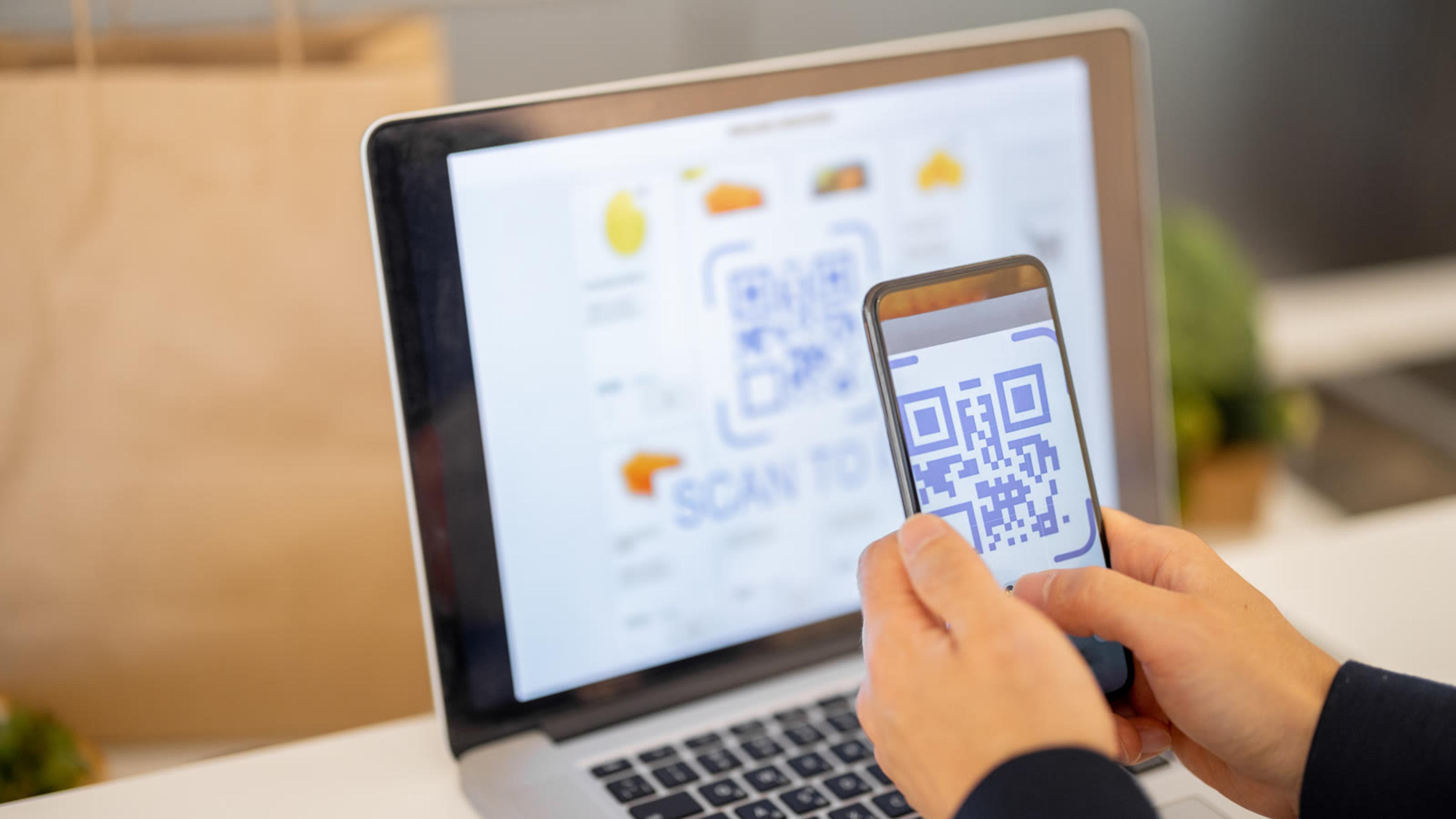
Every field above is a chance for a typo, and most SIP client setup problems come down to one wrong character. Provisioning removes the typing altogether.
With SessionTalk, the cloud portal generates a QR code for mobile or a setup link for desktop. Users scan once (or click once) and the app loads their SIP credentials, server addresses and codec settings without anyone typing them. You can also use the API to provision SIP credentials remotely, and provisioning can be pushed and updated centrally, so a change on the server side reaches the app without a fresh round of instructions.
That's the real fix for most setup mistakes, especially for a team. Our guide to zero-touch softphone provisioning for remote teams shows how to roll it out.
Settings check before you go live
Run through this list before you hand the app to users. If an account still won't register, our guide to fixing softphone registration errors and timeouts covers each error, and the full step-by-step setup lives in our softphone setup checklist.
Checklist: before you go live
- Get every value from the PBX or provider in writing (username, auth ID, password, domain, proxy, transport, port)
- Prefer TLS transport with SRTP media where the PBX supports it
- Leave the outbound proxy blank unless it's specified
- Confirm at least one codec matches the PBX
- Make a test registration on Wi-Fi and on mobile data (check the account shows registered; no test calls needed for this step)
- For a team rollout, provision by QR code or setup link instead of typing settings
- Keep SIP passwords out of email and chat; use portal provisioning
Pair it with a hosted PBX
Pair it with a hosted PBX so extensions, SIP credentials and provisioning come from one place: SessionPBX hosted PBX. It gives your business its own SIP domain and short extensions, and team members get set up with a QR code or desktop setup link. SessionPBX doesn't supply numbers or lines; it's a bring-your-own SIP trunk system, so you connect the trunk you already use and any SIP-compliant carrier works.
FAQ
What is the authentication ID in a softphone?
It's the login name the SIP server checks when the softphone registers. It's often the same as the username, but some PBXs and providers issue a separate one. Enter it exactly if you were given one.
Do I need an outbound proxy?
Only if your PBX or provider gives you one. Otherwise leave the field blank, because a proxy that isn't expected can stop the account from registering.
Is TLS or UDP better for a softphone?
TLS encrypts the signalling, while UDP sends it in the clear. SessionTalk's softphones use TLS signalling with SRTP media. Whichever you choose, use the matching port from your PBX or provider.
Why does my softphone register but have no audio?
Usually it's NAT, an SRTP mismatch or no shared codec. Check that STUN and ICE are on, that SRTP matches the PBX, and that at least one codec overlaps. The one-way audio guide linked above covers the NAT side in detail.
Can I set up a softphone without typing SIP details?
Yes. Scan a QR code on mobile or open a setup link on desktop from the cloud portal, and the app loads its SIP credentials, server addresses and codec settings for you.