Softphone for PC: Turn Windows into a Business Phone
Tom Reed · Updated 15 November 2026
A softphone for PC is an app that turns a Windows computer into a business phone. Install it, sign in with your SIP account, plug in a headset and you can make and take calls, transfer them and click to dial from other apps, without a desk handset.
This guide is for anyone replacing a desk phone with a Windows PC. It is written for office staff and small teams as much as for IT, so it keeps to plain steps and avoids jargon. It covers what you need, how to set it up, which everyday calling features the app handles and when a handset still makes sense.
What is a softphone for PC?
A softphone for PC, also called a Windows softphone or computer softphone, is a calling app that runs on your computer instead of on a physical phone. Your SIP account connects the app to your phone system, and your headset becomes the handset. The SessionTalk business softphone apps include a native desktop softphone for Windows and macOS, so you can use your computer as a phone.
The idea is simple. Your calls travel over the internet like any other app traffic, so there is no separate line to your desk. That makes a softphone for PC a practical choice for office staff, remote workers and anyone who wants one device for calls, email and the rest of the working day.
What do you need to use a PC as a business phone?
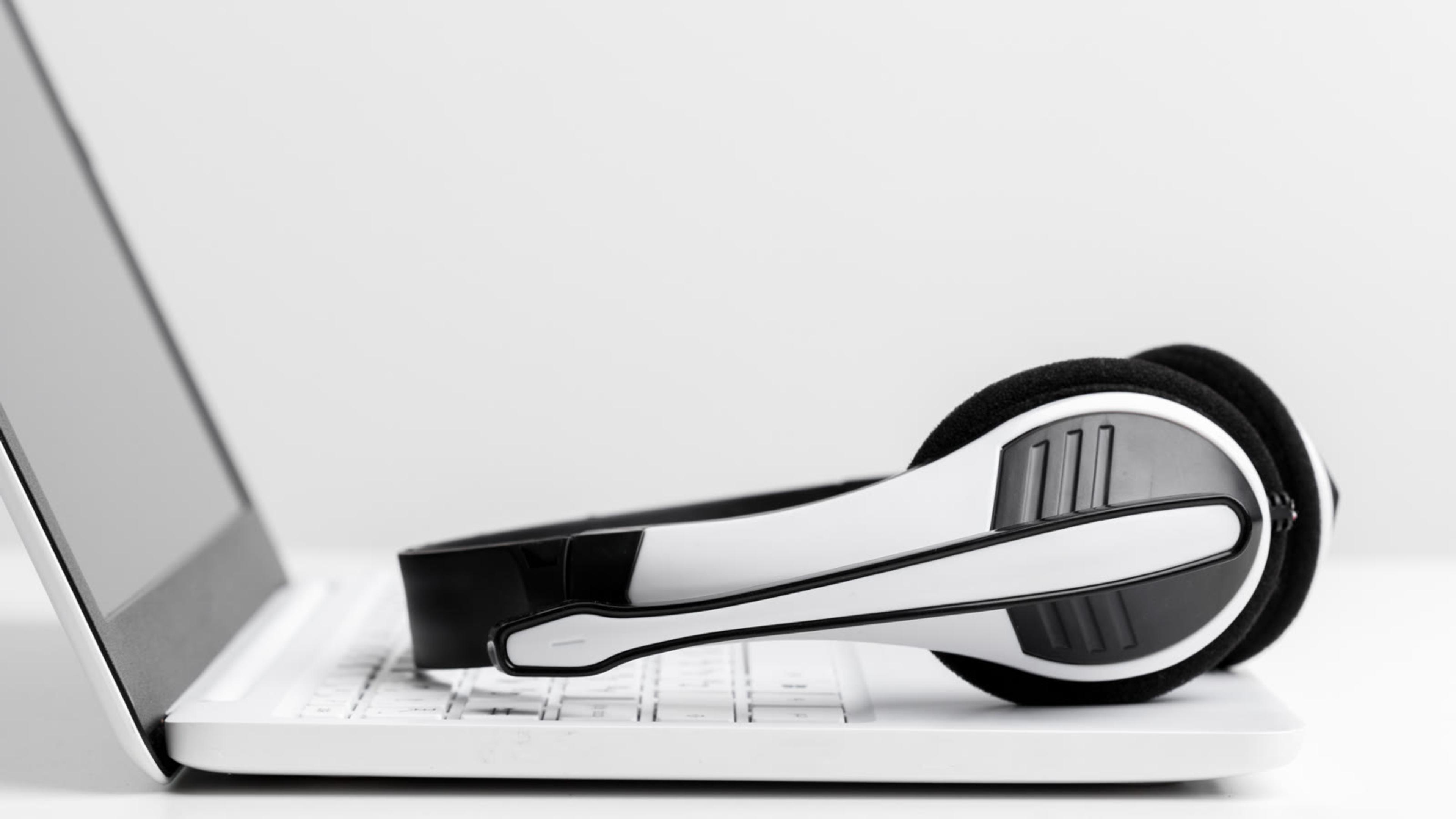
You need very little: an account to sign in with, a way to hear and speak, and a network that lets calls through. Run through this quick-start checklist:
- A SIP account or extension from your PBX or provider
- A USB or Bluetooth headset, or good built-in audio
- The desktop app installed, with your setup link opened (or your setup code entered)
- Your microphone and speaker chosen in the app
- A test call and a transfer placed
- Outbound TLS allowed on standard SIP ports
- Click-to-dial set for your browser or CRM, if you use it
The SIP account is the one piece you cannot skip, because it is what connects the app to your phone system. If you do not have one yet, ask whoever manages your PBX or provider, or see the hosted PBX section below.
How do you set up a softphone on Windows?
Setup takes a few steps, and you usually only do them once. Follow this order:
- Install the Windows desktop app using the MSI installer.
- Open the setup link you receive by email.
- Choose your headset in the audio settings.
- Place a test call, then try a transfer.
In more detail: the setup link comes from the cloud portal, where an administrator can push settings and updates to the app remotely. The link loads your account settings, so you do not have to type SIP details by hand. If the link is not available, a setup code works as a fallback.
The test call confirms that you can hear and be heard, and the transfer shows that the basics work before your first real call. If something sounds wrong, go back to the audio settings first, because the wrong microphone or speaker is a common cause.
For a single-user walkthrough, read how to set up a softphone on your laptop or smartphone. If you manage a team, the guide to rolling out desktop softphones on Windows and Mac is written for IT.
Which everyday calling features can a PC softphone handle?
The desktop app covers the features most people use at a desk, from answering a call to pulling a colleague into a conference. Here is what it handles and why each feature matters. Remote provisioning from the cloud portal keeps settings in one place, and HD voice is supported for clearer audio.
| Need | Feature |
|---|---|
| Handle several calls | 6 concurrent lines, hold, attended and blind transfer |
| Dial from other apps | Click-to-dial (sip:// and tel://) |
| See team availability | BLF monitoring |
| Meet with a group | 6-way conferencing, HD video |
| Stay secure | TLS signalling, SRTP media |
Click-to-dial lets you start a call from your CRM, email or browser with one click. Our post on desktop click-to-call softphones explains how it works. You can also merge, swap and split calls, forward calls and keep contacts in sync with a remote phonebook or LDAP. Local call recording and instant messaging are in the same app, so most of a normal desk workflow stays in one window.

Is a softphone for PC better than a desk phone?
It depends on how you work. A PC softphone suits people who already spend the day at a computer: it sits next to your CRM and email, and one headset covers calls and meetings. A desk phone can suit someone who wants a separate device that is always on the desk and does not depend on the computer.
The desktop softphone can replace a physical SIP desk phone, and both can share one PBX, so you can mix them across a team. A sensible approach is to give a handset to shared spaces such as a reception desk and let everyone else use the PC softphone, or simply to let each person choose. For a wider view, see mobile vs desktop softphone: when to use each.
Pair it with a hosted PBX
Pair it with a hosted PBX so extensions, seats and provisioning are managed from one portal. If you are new to the idea, the PBX phone system guide explains what a PBX does and how a softphone fits in.
FAQ
Can I use my PC as a phone?
Yes. With a desktop softphone and a SIP account, your Windows PC works as a business phone. Install the app, sign in with the details from your PBX or provider, connect a headset and you can make and take calls, transfer them and use click-to-dial from other applications, with no desk handset needed.
Does it work on Windows and Mac?
Yes. The SessionTalk desktop softphone is a native app for both Windows and macOS. Windows uses an MSI installer and macOS uses a DMG. You get the same calling features on each, including transfers, BLF monitoring, conferencing and click-to-dial, so a mixed team can use whichever computer they prefer.
Do I need a headset?
A headset is recommended, because it usually gives clearer calls and keeps your hands free. Good built-in audio can work too. Either way, you choose your microphone and speaker inside the app, so you can switch between a USB or Bluetooth headset and your computer's own audio whenever you need to.
Can it replace a desk phone?
Yes. The desktop softphone can replace a physical SIP desk phone. It handles attended and blind transfers, BLF monitoring, conferencing and local call recording, all from your computer. If you still want a handset for some people, both can register to the same PBX and work side by side.
Does it work behind a firewall?
Yes. The app uses ICE with STUN for NAT traversal, and outbound TLS on standard SIP ports is all your network needs to allow. If calls fail, ask your network administrator to check that rule.
Ready to try it on your own computer? Start a free trial of the SessionTalk softphone apps and see how a PC softphone fits your day, or explore the Windows and Mac desktop softphone.