VoIP App for iPad: How to Use an iPad as a Business Phone
Tom Reed · Updated 2 November 2026
Yes, an iPad can work as a business phone. Install a SIP softphone app, connect it to your PBX or VoIP provider, and it makes and takes calls over Wi-Fi, even on iPads with no cellular plan. Push notifications keep incoming calls ringing, and QR provisioning sets it up without typing SIP details.
If you are comparing options, start with our business softphone apps for mobile and desktop. This guide is for IT admins and small-business owners who want work calls on an iPad: a reception desk, a shop or clinic counter, a meeting room, or a member of staff who simply prefers a bigger screen. It leads with setup, then covers Wi-Fi-only iPads, headsets, video and keeping shared tablets tidy.
Can an iPad be used as a business phone?
Yes. An iPad has no phone dialler for a business line on its own, but a SIP softphone turns it into an extension on your phone system. Once the app is registered to your PBX, the iPad rings when the extension is called, places outbound calls through the same system as your desk phones, and shows the caller ID your PBX sends. The same softphone family runs on Windows, Mac, iOS and Android from one cloud portal.
SessionTalk's mobile softphone is a SIP softphone for iPhone, iPad and Android. On an iPad it gives you HD voice and video, messaging, call recording, push notifications, BLF monitoring and presence in a single app, and it is available in more than forty languages. Because it speaks standard SIP, it works with SIP-based PBXs and VoIP providers rather than being tied to a single system.
How do you set up a VoIP app on an iPad?
Setup is short when the account details come from the cloud portal instead of being typed by hand. The steps:
- Get a SIP account for the iPad from your PBX or VoIP provider. Create it for the role (for example "Reception") rather than a person if the tablet is shared. If you are not sure where SIP accounts and extensions come from, our guide to the PBX phone system explains it.
- Install the SessionTalk app from the App Store on the iPad.
- Open the app, choose the QR code scanner, allow camera access and scan the QR code generated in the cloud portal. The SIP credentials, server details and settings load without anyone typing them.
- Check that the account shows as registered. Registration is the signal that the iPad is ready to take calls on that extension.
QR provisioning is what keeps this tidy across many devices: users scan once and they are ready to call, with no manual setup. For rolling it out to a whole team, see zero-touch softphone provisioning for remote teams. Provisioning can also be done through an API if you manage devices from your own tools.
Does a VoIP app work on a Wi-Fi-only iPad?
Yes. A VoIP app sends calls over the internet connection, so a Wi-Fi-only iPad with no SIM card and no cellular plan can make and receive business calls. The iPad only needs a working connection to reach your PBX.
What matters is the network where the iPad actually sits:
- Coverage at the desk or counter. Check the signal where the tablet lives, not in the office next door. A reception desk at the far end of a building can sit in a weak spot.
- A stable network. Busy guest networks and captive-portal Wi-Fi (the kind that asks you to accept terms in a browser) can stop the app reaching the PBX until someone signs in again.
- Video quality settings. SessionTalk lets you adjust video quality for Wi-Fi and mobile networks, so a meeting-room iPad can use better quality on strong office Wi-Fi.
Incoming calls still reach the iPad when the app is not open, because push notifications wake the app when a call arrives. For how that works end to end, read the mobile softphone push notifications guide.
Which iPad setups work best for business calls?
Most iPads used for calls fall into a handful of patterns. Match the configuration to the job the tablet does.
Table: iPad business-phone setups
| Setup | Who it suits | What to configure | Watch out for |
|---|---|---|---|
| Reception or front-desk iPad | Receptionists answering the main line | Main-line SIP account, headset, BLF and presence to see who is free | Keep it on a stand and on power |
| Shop or clinic counter tablet | Staff taking calls between customers | Shared account, ringtone volume, headset | Wi-Fi coverage at the counter |
| Meeting-room iPad | Video calls with a remote team or customer | Video on, quality set for Wi-Fi | Room lighting and a speaker or headset |
| Field or site iPad (Wi-Fi only) | Staff on sites with venue Wi-Fi | Push notifications on, QR setup before they leave | Guest or captive-portal Wi-Fi |
| Personal second screen | Staff who also use an iPhone | Same SIP account or a second account | Decide which device should ring |

On a reception iPad, BLF and presence are the features that earn their place. The receptionist can see which colleagues are free before transferring a call, instead of putting the caller on hold to check.
Are video calls better on an iPad?
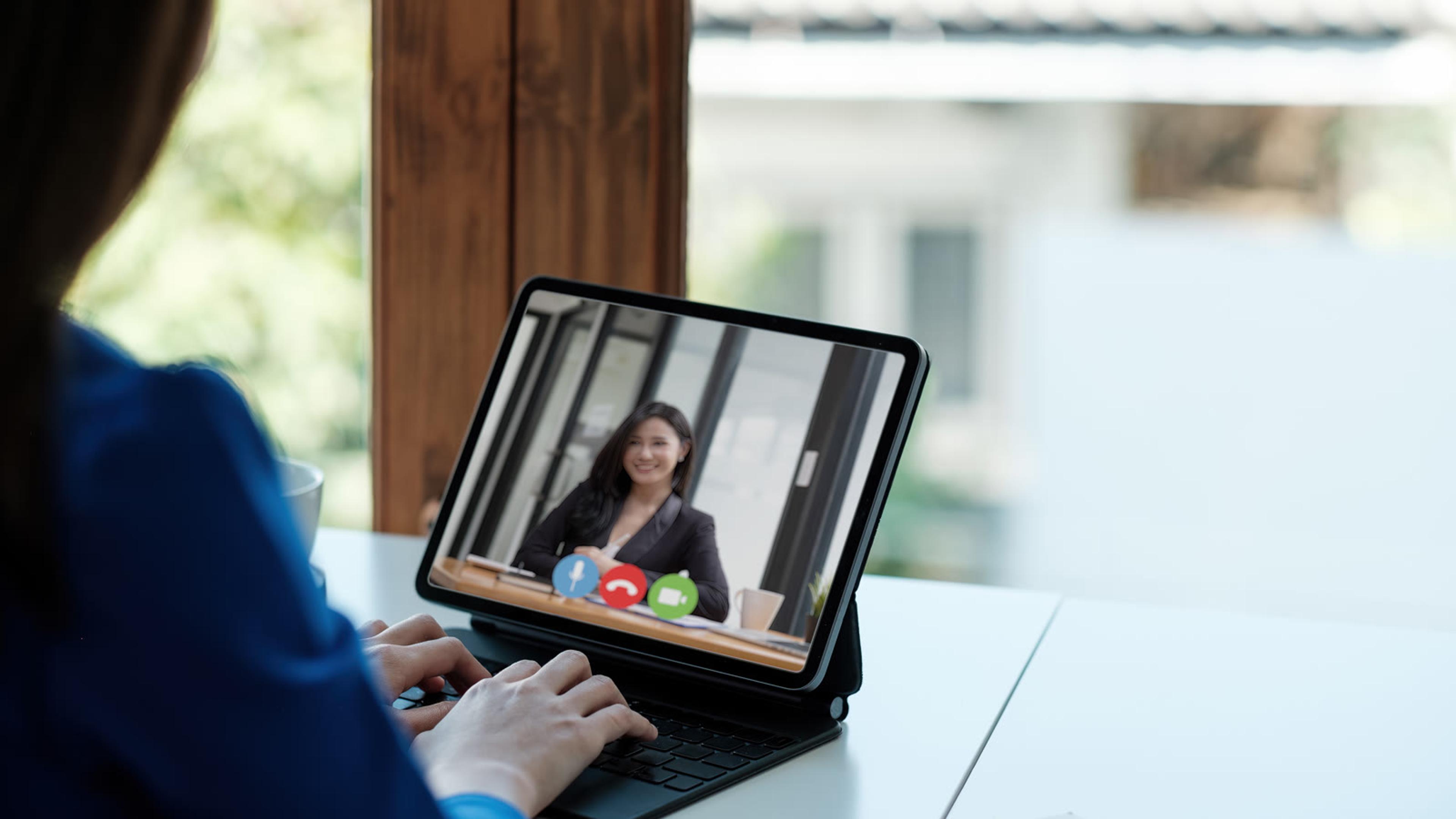
For face-to-face calls, the bigger screen is the main reason to use an iPad over a phone. It is easier to read a colleague's expression, see a customer clearly or hold a call in a meeting room where several people sit in front of one device.
SessionTalk supports HD video calling with H.264, VP8 and VP9 codecs, and you can adjust video quality for Wi-Fi and mobile networks. A meeting-room iPad on a stand with a headset or a decent speaker makes a simple video endpoint for calls with a remote team, without a dedicated room system.
What headset should you use with an iPad softphone?
Use a headset on any iPad that sits in a shared or noisy space. A Bluetooth headset suits a receptionist who stands up and moves around the desk; a wired headset avoids pairing confusion on a tablet several people use. At a shop or clinic counter a headset also keeps the caller's side of the conversation private from the customers queuing in front of you.
The choice between Bluetooth, USB and wired models, and what to look for in each, is covered in our softphone headset guide for business calls, so we will not repeat it here.
How do you manage shared iPads for a team?
Shared tablets stay manageable when the settings live in the cloud portal rather than on each device. From the portal you can provision and configure devices, set dial-plan rules and monitor usage centrally, then push changes to users instead of visiting each iPad.
Useful controls for shared iPads:
- Several SIP accounts in one app. The app holds up to 16 SIP accounts, so a front-desk iPad can carry a reception line and a sales line side by side.
- Central dial-plan rules. The flexible dial plan can match patterns, add prefixes and strip digits, so staff dial local or short numbers the way they would on a desk phone.
- Call recording where you need it. One-tap recording from the in-call screen; recordings appear in call history.
- Encryption. TLS signalling and SRTP-encrypted media between the device and your PBX, with certificate verification.
- Branding. Add your logo, colours and help links to the app, so shared tablets look like your company's own phone.
If staff will also take calls on their own iPads, agree the rules first. Our BYOD softphone policy guide covers what to put in place for personal devices.
iPad vs iPhone for work calls: which should you use?
Use an iPad where the device stays put or where the screen matters: a reception desk, a counter, a meeting room or a field kit that runs on venue Wi-Fi. Use an iPhone where the person moves and needs the phone in a pocket all day.
Many teams use both. A receptionist might answer the main line on the desk iPad and carry an iPhone for their own extension. If both devices share a SIP account, decide which should ring, or ask your PBX to ring both through the same extension or a ring group. For the iPhone side of the setup, read our guide to the iPhone VoIP app for business calls.
iPad business phone checklist
Checklist: before an iPad goes live
- SIP account (or accounts) created on the PBX or provider for the device or role
- App installed from the App Store and provisioned by QR code from the cloud portal
- Account shows registered on the office Wi-Fi (verify registration; no test calls needed for this step)
- Push notifications allowed so calls ring when the app is not open
- Microphone and camera permissions allowed for calls and video
- Headset paired and audio checked
- Dial-plan rules set centrally if staff dial local or short numbers
- TLS and SRTP encryption on where the PBX supports it
- Shared-device rules agreed (who signs in, who gets voicemail and call history)
Pair it with a hosted PBX
Pair it with a hosted PBX so the iPad's extension, SIP credentials and provisioning come from one place: SessionPBX hosted PBX. SessionPBX gives your business its own SIP domain and short extensions, and configures mobile apps with a QR code. SessionPBX doesn't supply numbers or lines: it is a bring-your-own SIP trunk system, so you connect the SIP trunk you already use for outside calls.
FAQ
Is there a VoIP app for iPad?
Yes. SIP softphones run on iPad, and SessionTalk's mobile softphone supports iPhone, iPad and Android. It connects to SIP-based PBXs and VoIP providers.
Can I make calls on an iPad without a SIM card?
Yes. A VoIP app calls over Wi-Fi using a SIP account from your PBX or provider, so a Wi-Fi-only iPad with no SIM card works as a business phone.
Will an iPad ring when the app is closed?
Yes. Push notifications wake the app for incoming calls, so the iPad rings without the app being open.
Can an iPad and an iPhone use the same work number?
Yes, if your PBX lets the same extension or a ring group reach both devices. Check how your PBX handles this, and decide which device should ring for which calls.
Are iPad VoIP calls secure?
SessionTalk uses TLS signalling and SRTP-encrypted media between the device and your PBX, with certificate verification to prevent man-in-the-middle attacks.